forked from docs/doc-exports
 陈伟 00621181
a562174edd
陈伟 00621181
a562174edd
Reviewed-by: Hasko, Vladimir <vladimir.hasko@t-systems.com>
Co-authored-by: 陈伟 00621181 <chenwei395@huawei.com>
Co-committed-by: 陈伟 00621181 <chenwei395@huawei.com>
5.4 KiB
5.4 KiB
Deleting a Template
If a template is no longer in use, RFS supports deleting it. You can choose to delete the templates one by one or in batches.
- Log in to the management console.
- In the upper left corner of the page, click
 , and then click Management & Deployment > Resource Formation Service.
The Dashboard page is displayed.
Figure 1 RFS Dashboard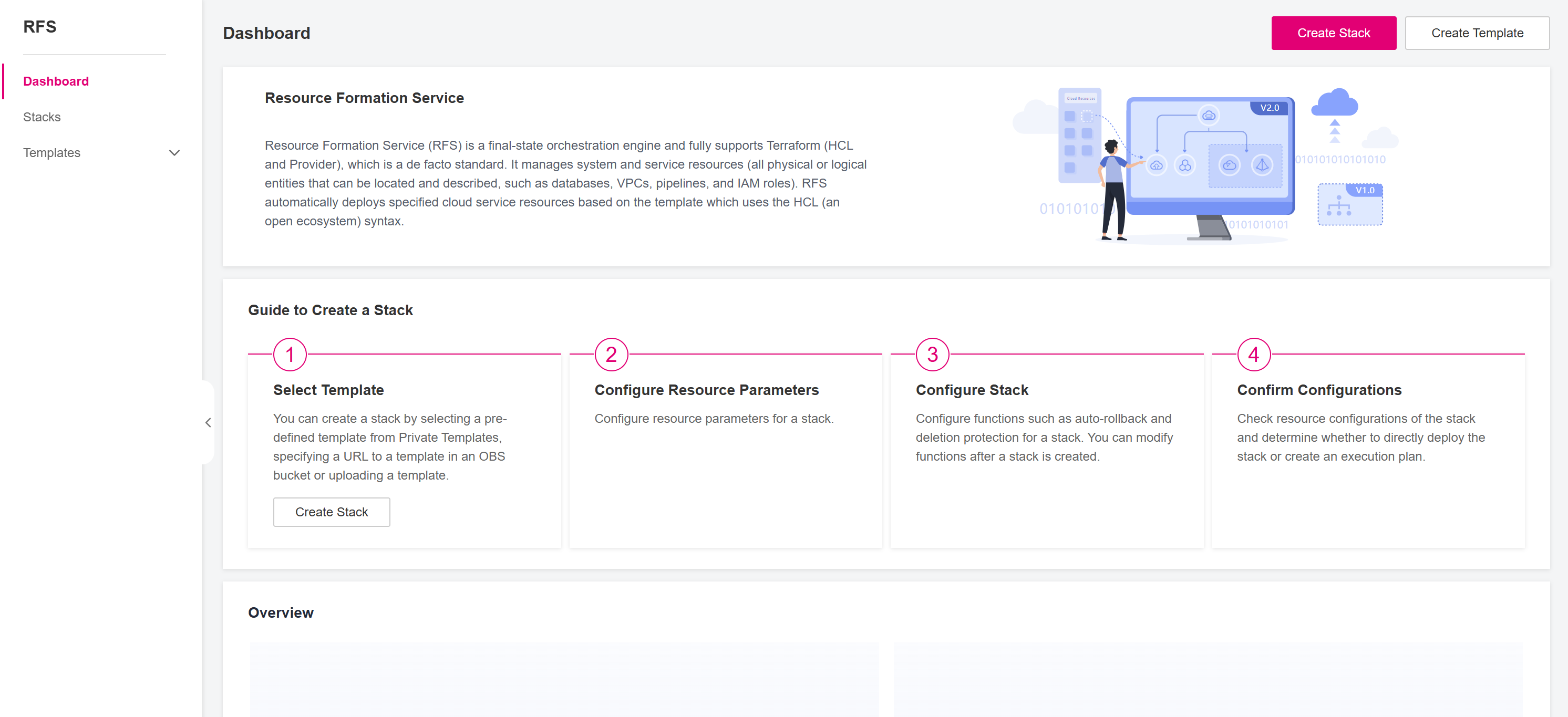
- In the left navigation pane, choose Templates –> Private Templates. You can see all the templates created under the current account.Figure 2 RFS Private Templates

- You can delete a single template or multiple templates in batches:
- To delete a single template, click More -> Delete in the Operation column.Figure 3 RFS Private Templates
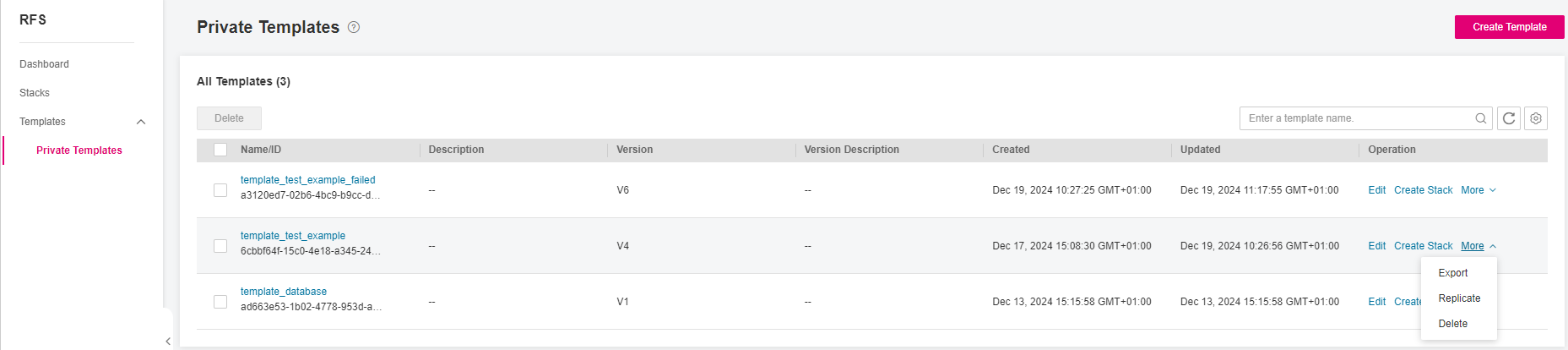
- To delete multiple templates in batches, select the desired templates and click the Delete in the upper left corner above the template table.Figure 4 RFS Private Templates

- To delete a single template, click More -> Delete in the Operation column.
- In the dialog box displayed, click Yes as shown in Figure Dialog box for deleting a template. The template(s) and all versions will be deleted.

- Deleting a template will delete all versions in the template and the deleted versions cannot be restored. Exercise caution when performing this operation.
- If you just want to delete a template version, please go to View the Template Details.


Parent topic: Managing Templates