Files
doc-exports/docs/ecs/umn/en-us_topic_0030878383.html
wanghuijuan738 4304fed907 ECS UMN 20260417 version. Added secure boot content.
Reviewed-by: Pristromskaia, Margarita <margarita.pristromskaia@t-systems.com>
Co-authored-by: wanghuijuan738 <wanghuijuan738@huawei.com>
Co-committed-by: wanghuijuan738 <wanghuijuan738@huawei.com>
2026-05-11 15:42:48 +00:00

30 KiB

Configuring Security Group Rules

Scenarios

Similar to firewall, a security group is a logical group used to control network access. You can define access rules for a security group to protect the ECSs that are added to this security group.

  • Inbound: Inbound rules allow external network traffic to be sent to the ECSs in the security group.
  • Outbound: Outbound rules allow network traffic from the ECSs in the security group to be sent out of the security group.

For details about the default security group rules, see Virtual Private Cloud User Guide. For details about configuration examples for security group rules, see Security Group Configuration Examples.

Procedure

  1. Log in to the management console.
  2. Click in the upper left corner and select a region and project.
  3. Under Computing, click Elastic Cloud Server.
  4. On the Elastic Cloud Server page, click the name of the target ECS.

    The ECS details page is displayed.

  5. Click the Security Groups tab, expand the information of the security group, and view security group rules.
  6. Click the security group ID.

    The system automatically switches to the security group details page.

  7. On the Inbound Rules tab, click Add Rule.

    The Add Inbound Rule dialog box is displayed.

  8. Configure required parameters.

    You can click + to add more inbound rules.

    Figure 1 Adding inbound rules
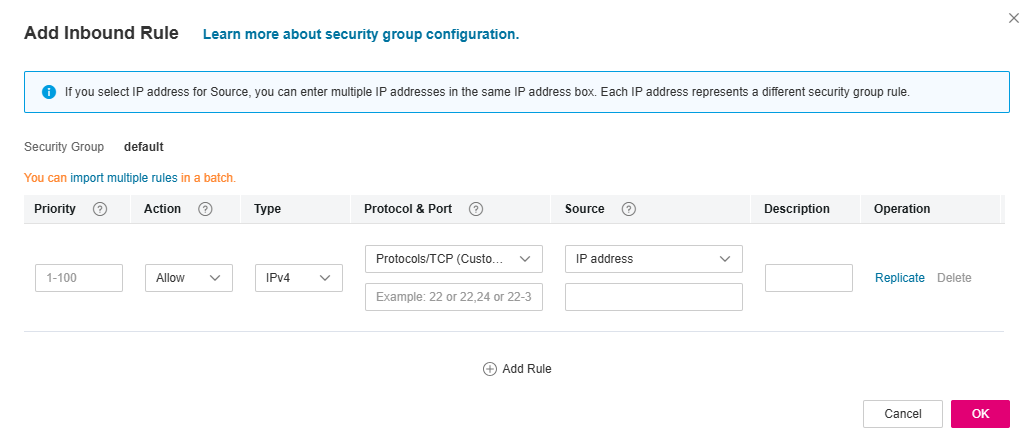
    Table 1 Inbound rule parameter description

    Parameter

    Description

    Example Value

    Priority

    The security group rule priority.

    The priority value ranges from 1 to 100. The default value is 1, which has the highest priority. The security group rule with a smaller value has a higher priority.

    1

    Action

    The value can be Allow or Deny.
    • If the Action is set to Allow, traffic is allowed to access the cloud servers in the security group over specified ports.
    • If the Action is set to Deny, traffic is denied to access the cloud servers in the security group over specified ports.

    Allow

    Type

    Source IP address version. You can select:
    • IPv4
    • IPv6

    IPv4

    Protocol & Port

    The network protocol and port used to match traffic in a security group rule.

    • The network protocol used to match traffic in a security group rule.

      Currently, the value can be All, TCP, UDP, GRE, ICMP, or more.

    • Port used to match traffic in a security group rule. The value can be from 1 to 65535.

      The port or port range over which traffic can reach your ECS. The value can be from 1 to 65535.

    Protocol: TCP

    Port: 22, 22-30

    Source

    Used to match the IP address or address range of an external request. The source can be:
    • IP address:
      • A single IP address: IP address/mask

        Example IPv4 address: 192.168.10.10/32

        Example IPv6 address: 2002:50::44/128

      • IP address range in CIDR notation: IP address/mask

        Example IPv4 address range: 192.168.52.0/24

        Example IPv6 address range: 2407:c080:802:469::/64

      • All IP addresses

        0.0.0.0/0 represents all IPv4 addresses.

        ::/0 represents all IPv6 addresses.

    • Security group: The source is from another security group. You can select a security group in the same region from the drop-down list. If there is instance A in security group A and instance B in security group B, and the inbound rule of security group A allows traffic from security group B, traffic is allowed from instance B to instance A.
    • IP address group: An IP address group is a collection of one or more IP addresses. You can select an available IP address group from the drop-down list. An IP address group can help you manage IP address ranges and IP addresses with same security requirements in a simpler way.

    IP address

    192.168.52.0/24,10.0.0.0/24

    Description

    Supplementary information about the security group rule. This parameter is optional.

    The security group rule description can contain a maximum of 255 characters and cannot contain angle brackets (< or >).

    -

  9. Click OK.

    The inbound rule list is displayed.

  10. On the Outbound Rules tab, click Add Rule.

    The Add Outbound Rule dialog box is displayed.

  11. Configure required parameters.

    You can click + to add more outbound rules.

    Figure 2 Adding outbound rules
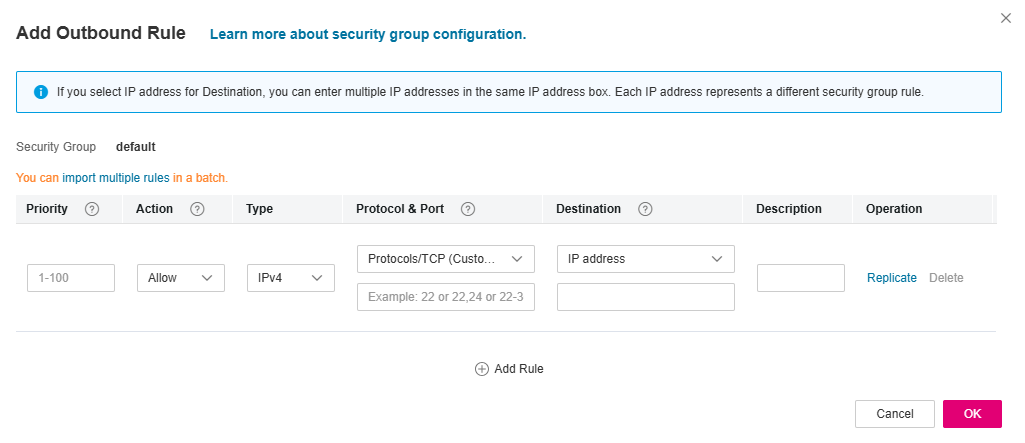
    Table 2 Outbound rule parameter description

    Parameter

    Description

    Example Value

    Priority

    The security group rule priority.

    The priority value ranges from 1 to 100. The default value is 1, which has the highest priority. The security group rule with a smaller value has a higher priority.

    1

    Action

    Allow or Deny
    • If the Action is set to Allow, access from ECSs in the security group is allowed to the destination over specified ports.
    • If the Action is set to Deny, access from ECSs in the security group is denied to the destination over specified ports.

    Deny rules take precedence over allow rules of the same priority.

    Allow

    Protocol & Port

    The network protocol and port used to match traffic in a security group rule.

    • The network protocol used to match traffic in a security group rule.

      Currently, the value can be All, TCP, UDP, GRE, ICMP, or more.

    • The port or port range over which traffic can leave your ECS. The value can be from 1 to 65535.

    Protocol: TCP

    22, 22-30

    Type

    Source IP address version. You can select:
    • IPv4
    • IPv6

    IPv4

    Destination

    The destination in an outbound rule is used to match the IP address or address range of an internal request. The destination can be:
    • IP address:
      • Single IP address: IP address/mask

        Example IPv4 address: 192.168.10.10/32

        Example IPv6 address: 2002:50::44/128

      • IP address range in CIDR notation: IP address/mask

        Example IPv4 address range: 192.168.52.0/24

        Example IPv6 address range: 2407:c080:802:469::/64

      • All IP addresses

        0.0.0.0/0 represents all IPv4 addresses.

        ::/0 represents all IPv6 addresses.

    • Security group: The destination is from another security group. You can select a security group in the same region under the current account from the drop-down list. Instance A is in security group A and instance B is in security group B. If security group A has an outbound rule with Action set to Allow and Destination set to security group B, access from instance A is allowed to instance B.
    • IP address group: An IP address group is a collection of one or more IP addresses. You can select an available IP address group from the drop-down list. An IP address group can help you manage IP address ranges and IP addresses with same security requirements in a simpler way.

    IP address: 0.0.0.0/0

    Description

    Supplementary information about the security group rule. This parameter is optional.

    The security group rule description can contain a maximum of 255 characters and cannot contain angle brackets (< or >).

    N/A

  12. Click OK to complete the security rule configuration.
<script language="JavaScript"> </script>