forked from docs/doc-exports
 weihongmin1
8af0f653c6
weihongmin1
8af0f653c6
Reviewed-by: Rogal, Marcel <mrogal@noreply.gitea.eco.tsi-dev.otc-service.com>
Co-authored-by: weihongmin1 <weihongmin1@huawei.com>
Co-committed-by: weihongmin1 <weihongmin1@huawei.com>
6.4 KiB
6.4 KiB
Viewing and Modifying User Group Information
As a security administrator, you can view and modify the basic information, permissions, and users of a user group. You can modify users' permissions by changing the groups to which the users belong.
Procedure
- In the navigation pane, choose User Groups.
- In the user group list, view or modify user group information.
- Viewing user group information
In the user group list, click the target user group to view its details, including the basic information, permissions, and users.
- Modifying user group informationClick Modify in the Operation column of the row that contains the target user group to go to the Modify User Group page.

- For the default user group, you can only manage its users and cannot modify its basic information or permissions.
- If the name of a user group has been configured in the identity conversion rules of an IdP, modifying the user group name will cause the identity conversion rules to fail. Exercise caution when performing this operation.
- Modifying user group permissionsYou can view or modify user group permissions on the Permissions page of the IAM console.
- Modifying the permissions of a user group changes the permissions of all users in the user group.
- Permissions of the default user group admin cannot be modified.
- Click a user group to go to the details page, and view the group permissions in the Permissions tab.
- Click Delete in the row that contains the role or policy you want to delete.Figure 1 Deleting an assigned permission

- Click OK.
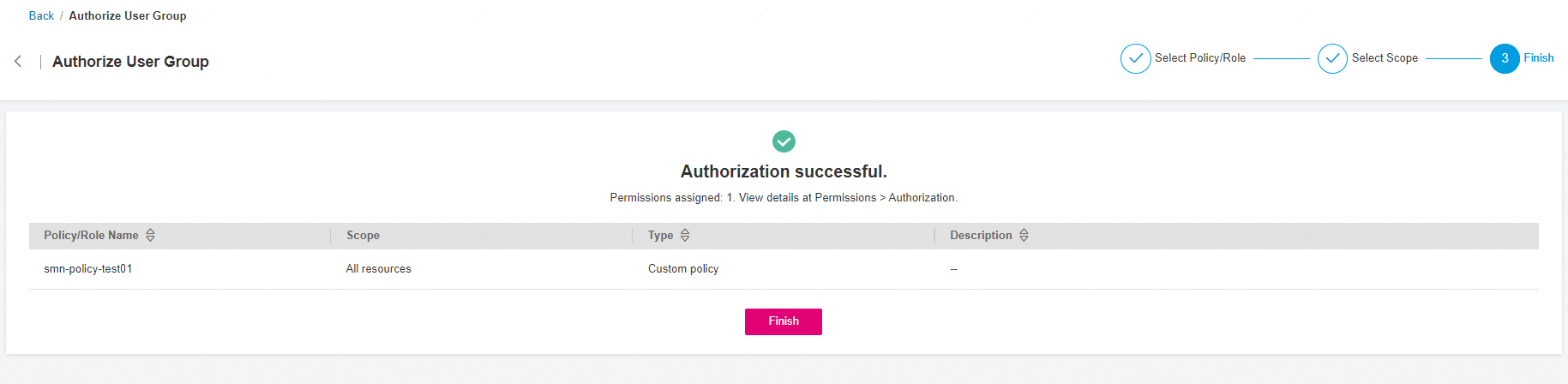
- On the Permissions tab, click Authorize.Figure 2 Assigning permissions to a user group

- Select desired permissions and a scope, and click OK.
- Go back to the Permissions tab to view the modified group permissions.Figure 3 Permissions assigned
- Managing Users
- In the user group list, click Manage User in the row containing the user group you want to modify.
- In the Available Users area, select users you want to add to the user group.
- In the Selected Users area, remove users from the user group.
- Viewing user group information


Parent topic: User Groups and Authorization